Pause, resume, edit, or delete a campaign
Pause / Resume on running campaigns. Edit on draft/scheduled/paused. Hard-delete only on draft or cancelled.
Pause, resume, edit, or delete a campaign
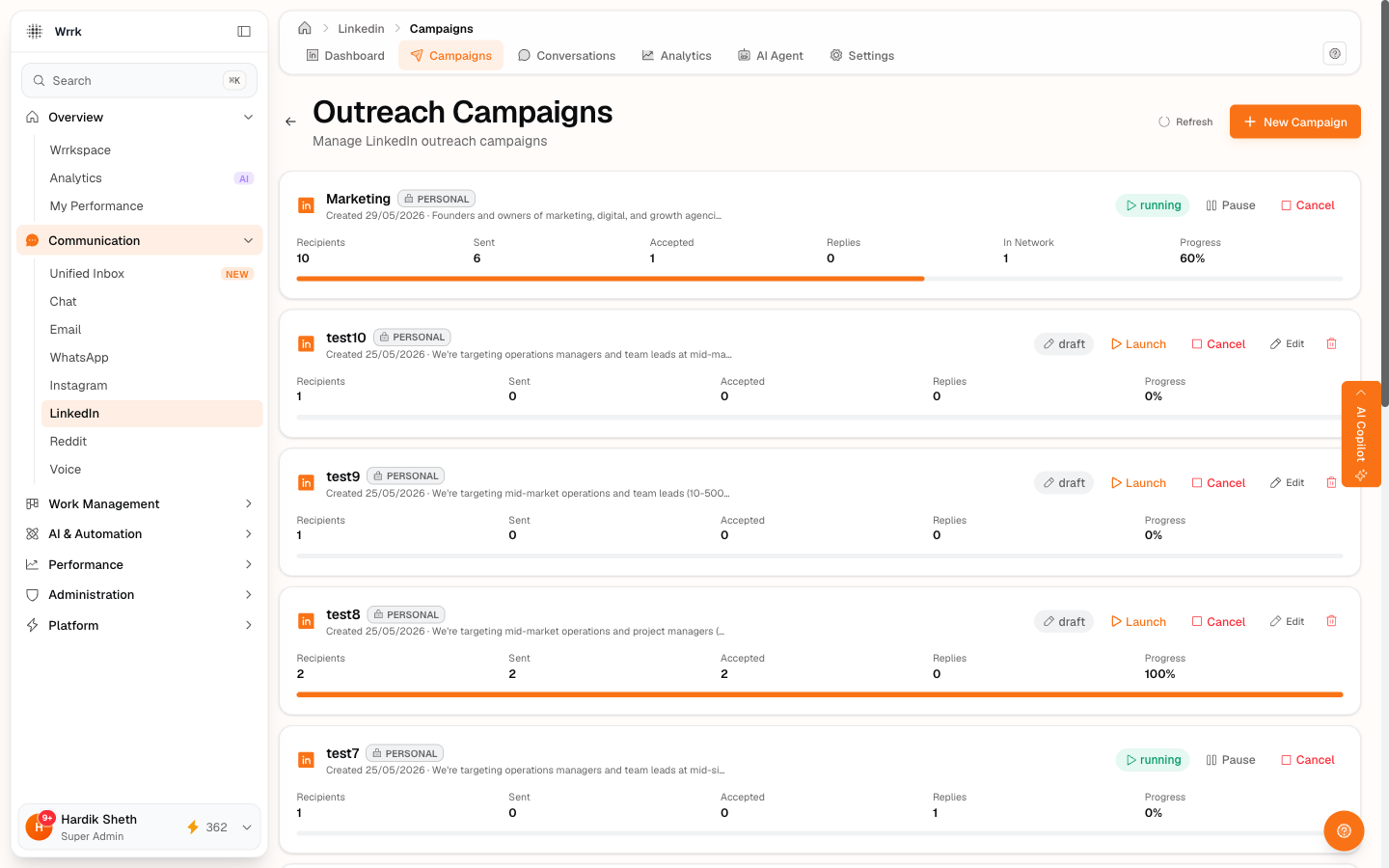
Managing a campaign through its lifecycle.
Pause
Available on running campaigns. Look for the inline Pause button next to the status pill on the dashboard's campaign list, or on the campaigns page.
What it does: status running → paused. Send Queue stops accepting new sends. Existing recipients in queued stay where they are. Recipients already in invited (in Pending Accepts) remain there.
Resume
Available on paused campaigns. A blue inline Resume button appears in the same spot. Status flips back to running and the Send Queue is usable again.
Edit
Available on draft / scheduled / paused campaigns. Click the inline Edit button on the campaigns list, it opens the campaign detail page directly in edit mode and auto-switches to the Settings tab.
Editable fields:
- Campaign name
- Campaign objective / target market
- Product description
- Connection note (200 char cap)
- Booking link
Running and completed campaigns are intentionally read-only, letting you change the objective mid-flight would invalidate the stats already collected.
Cancel
Sets status to cancelled. Recipients keep their state. Analytics rows stay intact. The campaign is still visible (you can re-launch by editing if needed, no, that's not currently supported, but cancelling preserves audit history).
Delete
Only allowed for draft or cancelled campaigns. Hard-deletes the row, gone for good. Recipient rows (per-prospect state) and activity log rows stay (they're addressed by their own keys), so deleting a cancelled campaign doesn't break analytics on anything else.
Why the cascading rules
Running campaigns can't be edited because every send is tied to the configuration at the time it was sent. Letting someone retroactively change the objective would make stats meaningless. Same reason completed campaigns are locked.
One-click + New Campaign
The + New Campaign button on the dashboard now deep-links you straight to the create form (no second click on the campaigns list). Saves one navigation step every time.
Tags
Related Articles
Launch a campaign and send invites
Launch flips status to running. The Send Queue is a scrollable list; pick a prospect, copy the note, open LinkedIn, paste, send, confirm via one of five buttons.
Create your first LinkedIn campaign
Fill the create form: name, account, product description, objective, connection note, booking link. Use AI to draft fields, grounded in your org profile.
State-aware Recipients tab
Per-row state pill + attention badge + click-to-expand inline actions. Continue the workflow from any row, send invites and confirm accepts without leaving the campaign.