Launch a campaign and send invites
Launch flips status to running. The Send Queue is a scrollable list; pick a prospect, copy the note, open LinkedIn, paste, send, confirm via one of five buttons.
Launch a campaign and send invites
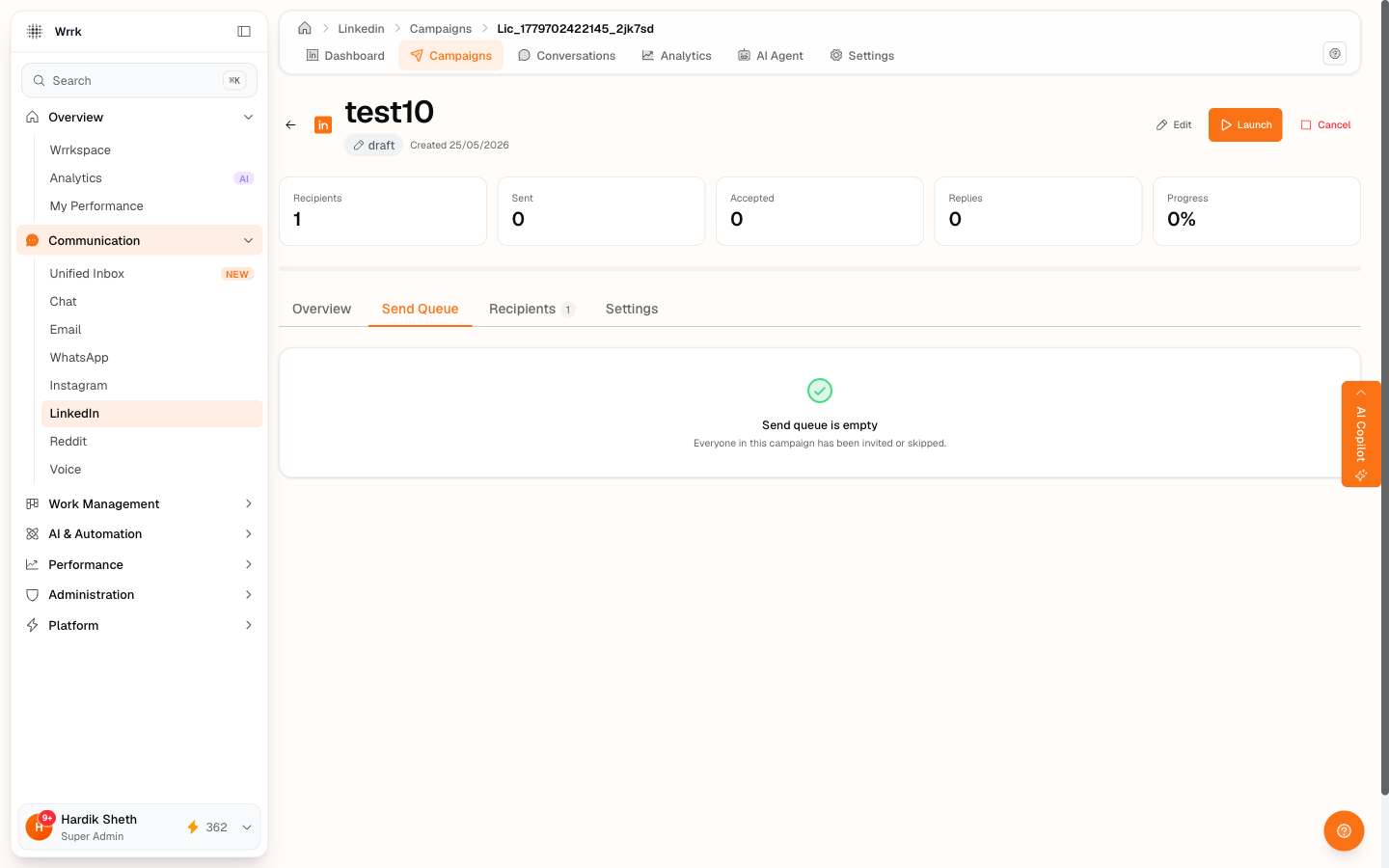
What "Launch" does (and doesn't)
Launch only flips the campaign status from draft to running and opens the Send Queue tab for action. It does not auto-send anything. The LinkedIn module is in manual-outreach mode, the scheduled executor is a deliberate no-op.
You send each invite yourself, on LinkedIn, in your own logged-in browser. wrrk's job is to draft the personalized note, deep-link you in, and track what you've done.
The Send Queue, list view + click to pick
Open the campaign → click the Send Queue tab. The tab shows a count badge (e.g. Send queue (12)) so you always know how many are still waiting.
Inside, you'll see:
- Summary header: "N prospects ready to invite · M left today." The "M left today" reflects your daily safety cap.
- Scrollable list of every queued recipient, 3–4 visible at a time, scroll for the rest. Each row shows the prospect's name + headline + company. Click any row to make it Active.
- Active send card below the list: the personalized invite note, Copy button, Open connection request button, and the five action buttons. Click a different row in the list and the send card remounts for that prospect.
The default Active row is the first in the queue, work top-down without clicking anything, or pick whichever prospect you want to send next.
The send loop, one prospect at a time
- With a recipient Active, click Copy: the personalized note goes to your clipboard.
- Click Open connection request: opens the prospect's profile in a new tab.
- On LinkedIn: click Connect → Add a note → paste the note → Send.
- Come back to wrrk and click one of the five buttons (see What each button does below).
What each button does
After you've opened LinkedIn and come back, the send card shows five buttons. Each maps to a different real-world outcome, picking the right one keeps your stats accurate.
✓ Yes, sent
- State:
queued → invited. CounterconnectionsSent +1. Recipient moves to Pending Accepts. - Use when: you successfully sent the invite on LinkedIn.
Not yet
- State: unchanged. Logged for audit only.
- The selection auto-advances to the next row in the queue so you can move on, but this recipient stays in the queue for you to return to.
- Use when: you got interrupted, the LinkedIn tab didn't load, or you want to skip past this one for now and come back later.
🤝 Already connected
- State:
queued → accepted(skips theinvitedstep entirely). A conversation row is seeded immediately so you can use Get AI suggestion (or Draft my first message) right away. No invite is counted. - Use when: LinkedIn shows this person as already in your network, there's no Connect button. Skipping the invite and going straight to a message is the right move; not counting an invite that never happened keeps your acceptance rate honest.
🕐 Already invited
- State:
queued → invited(parks in Pending Accepts). No invite is counted. - Use when: LinkedIn shows a Pending invite that was sent before, usually outside this campaign. wrrk tracks them in the pending bucket without claiming credit for a send we didn't make.
✕ Skip
- State:
queued → excluded. Recipient never resurfaces in this campaign. - Use when: you decide this person isn't a fit. Use sparingly, Skipped recipients are gone from the campaign for good (no undo).
Why these five exist
The Already connected and Already invited buttons are there specifically because pasted lists often mix already-connections with cold prospects. Without them, you'd be stuck either lying (clicking Yes, sent for an invite you never sent) or losing the recipient (clicking Skip when you actually do want to message them). Both options drift your state away from reality, the four named buttons keep it honest. Then Not yet exists for the everyday "let me come back to this one" case without any state side effects.
Pacing yourself
The header shows N in queue · M left today. The "M left today" number reflects your daily safety cap (default 100/day for LinkedIn invites, adjust in Settings if needed). wrrk won't let you go past the cap.
If you hit your daily cap or your acceptance rate drops below the safety threshold, you'll see a toast and the queue stops. Come back tomorrow.
Why the note can't be pre-filled
LinkedIn's invite-note input lives in Shadow DOM. wrrk literally cannot inject text into it via URL params. That's why the flow is Copy → Open → Paste, not a one-click "send invite" link. It's a LinkedIn constraint, not a wrrk choice.
Tags
Related Articles
Create your first LinkedIn campaign
Fill the create form: name, account, product description, objective, connection note, booking link. Use AI to draft fields, grounded in your org profile.
Check who accepted your invites
24h+ invites surface for confirmation on the dashboard. Same flow available inline on Recipients tab rows. Yes accepted, Still waiting, or Withdraw, all user-confirmed.
State-aware Recipients tab
Per-row state pill + attention badge + click-to-expand inline actions. Continue the workflow from any row, send invites and confirm accepts without leaving the campaign.