State-aware Recipients tab
Per-row state pill + attention badge + click-to-expand inline actions. Continue the workflow from any row, send invites and confirm accepts without leaving the campaign.
State-aware Recipients tab
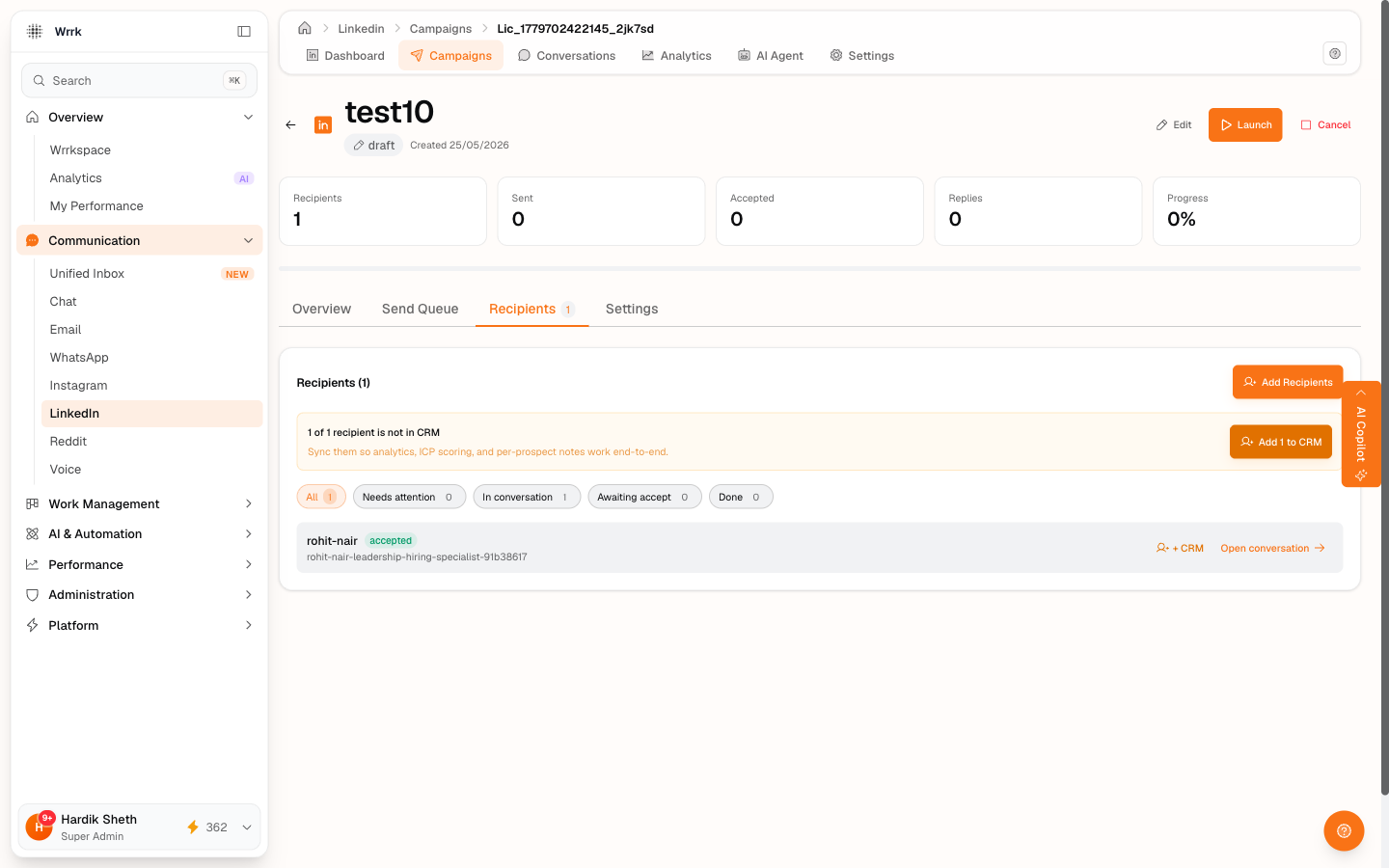
The Recipients tab inside a campaign isn't a flat list of slugs, it's a working surface that mirrors the dashboard's reminder cards, scoped to one campaign.
What each row shows
For every prospect in the campaign, the row carries:
- Display info: name + headline + company (when known). Falls back to slug + "No profile data" when the row was added via Manual Entry without CRM enrichment.
- State pill: color-coded so you can scan distribution at a glance:
queued(zinc), ready to inviteinvited(blue), invite sent, waiting for acceptaccepted(emerald), accepted, conversation seededin conversation(purple), at least one outbound message exchangedcompleted(green), outcome reached, conversation closedunresponsive(red), 3+ unanswered messagesexcluded(zinc faded), skipped or withdrawn- Attention badge: at most one per row, mirrors the dashboard cards:
- ⏱ Pending (yellow), invite is 24h+ old without a confirmed accept
- ⚡ Check reply (blue), last outbound 24h+ ago, no reply since
- 🔔 Follow up (amber), 72h+ stalled, no reply
- Action button on the right, context-aware:
- Open conversation → for prospects in
accepted/in conversation/completed(deep-links to the right thread) - Send invite ▾ for
queued, click-to-expand (see below) - Check for accept ▾ for
invited, click-to-expand (see below) - No action for terminal states (
excluded/unresponsive) - + CRM chip, appears only when the prospect isn't yet a CRM contact and isn't in a terminal state. Click to create the CRM contact with the row's display data.
Continue the workflow from the row itself
Queued and invited rows are click-to-expand. The chevron next to Send invite / Check for accept rotates when the row is open. Before this, the Recipients tab was read-only and you had to bounce back to the dashboard's Pending Accepts card or the Send Queue tab to act on a specific prospect, that gap is closed.
Queued rows expand into the same send-invite flow as the Send Queue tab:
- The prepared connection note + a Copy affordance.
- Open connection request → opens the prospect's LinkedIn profile.
- After you come back: Yes, sent / Not yet / Skip + the mixed-list Already connected / Already invited clauses.
- On Yes / Skip / Already the row collapses and the list re-fetches, counts + state pills update without leaving the tab. Not yet leaves the row open so you can take another decision.
Invited rows expand into the same accept-confirmation flow as the dashboard's Pending Accepts card:
- Amber LinkedIn-doesn't-notify-us reminder above the buttons.
- Check profile on LinkedIn → opens the prospect.
- After you come back: Yes, accepted / Still waiting / Withdraw invite.
- Yes transitions the row to
acceptedand seeds a conversation; Withdraw moves it toexcluded; Still waiting leaves the row open in case you want to immediately withdraw on second thought.
Both flows respect the team-sharing safety gate, if you're acting on a campaign that uses a team-shared LinkedIn account you don't own, the Open in LinkedIn button is locked until you tick the "I'm logged into LinkedIn as the shared account" checkbox.
Filter pills + counts
Five filter pills above the list, each with a live count from the server:
- All: every recipient in the campaign
- Needs attention: rows with any attention badge active
- In conversation: accepted or in-conversation with an active thread
- Awaiting accept: invited but not yet confirmed accepted
- Done: completed / unresponsive / excluded
Click any pill to filter the list. Default sort puts needs-attention rows at the top, then most-recent activity descending, so what you most need to act on rises naturally.
CRM-sync banner (when applicable)
If any recipient in the campaign isn't in your CRM yet, an amber banner appears above the filter pills: "N of M recipients are not in CRM" with a one-click Add N to CRM bulk action. Common case: campaigns created via Manual Entry without the CRM-sync toggle on, or campaigns from before the toggle existed.
Per-row + CRM chips do the same thing for one prospect at a time. Both share the same backend (/api/crm/contacts/bulk-create-from-linkedin), duplicates auto-skipped, no double-creates.
Why this exists
The dashboard cards (Check for accepts, Sent recently, Check for replies, Time to follow up) are global views, every running campaign in your org. The Recipients tab is the same idea scoped to one campaign so you can plan + execute within a single outreach motion. Same thresholds, same trust model, same deep-link CTAs.
Performance
The endpoint joins recipients ↔ conversations ↔ CRM contacts on the server in one round-trip. Lazy-fetched on first open of the Recipients tab + on campaign mount (to populate the Send queue (N) tab badge). Updates optimistically when you confirm activities elsewhere; auto-refreshes on tab focus when you come back from another window.
Tags
Related Articles
Add recipients to a campaign
Three tabs, Manual Entry, Upload CSV (with column detection), CRM Contacts. Optional auto-sync creates CRM contacts for any prospect not already there.
Launch a campaign and send invites
Launch flips status to running. The Send Queue is a scrollable list; pick a prospect, copy the note, open LinkedIn, paste, send, confirm via one of five buttons.
Check who accepted your invites
24h+ invites surface for confirmation on the dashboard. Same flow available inline on Recipients tab rows. Yes accepted, Still waiting, or Withdraw, all user-confirmed.
Pause, resume, edit, or delete a campaign
Pause / Resume on running campaigns. Edit on draft/scheduled/paused. Hard-delete only on draft or cancelled.