Add recipients to a campaign
Three tabs, Manual Entry, Upload CSV (with column detection), CRM Contacts. Optional auto-sync creates CRM contacts for any prospect not already there.
Add recipients to a campaign
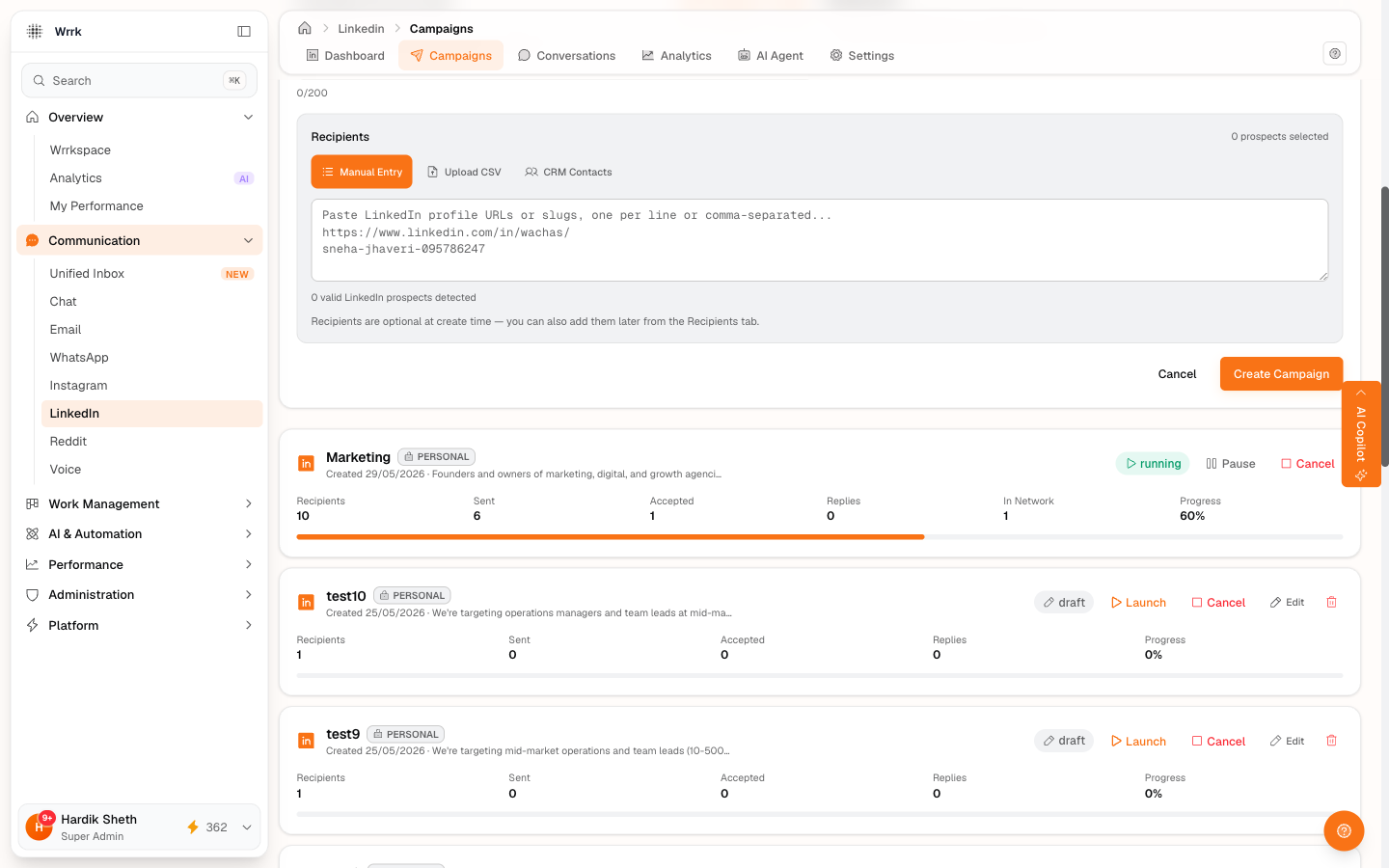
The Recipients panel on the create form (and the Recipients tab on a campaign's detail page) has three tabs.
Tab 1, Manual Entry
Paste LinkedIn profile URLs or raw slugs, one per line or comma-separated. Examples that all work:
https://www.linkedin.com/in/wachas/
linkedin.com/in/sneha-jhaveri-095786247
pratham-jadhav-8b2583214
A live counter below the box reads "N valid LinkedIn prospects detected". Invalid lines drop silently. Duplicate slugs are deduped.
Tab 2, Upload CSV (with column detection)
Drag-drop a .csv, .tsv, or .txt file (max 5MB). LinkedIn URLs are auto-detected from any column, no template needed. Preview shows the first 50 slugs plus "and X more".
Header detection: when the first row of your file looks like column headers, wrrk reads them and pulls per-row enrichment alongside the LinkedIn URL. Recognized headers:
linkedin/linkedinurl/linkedin_url/profile/url→ the LinkedIn URL columnname/full name/fullname→ prospect nameemail/e-mail/email address→ emailphone/mobile/tel→ phonecompany/organization/org→ companytitle/job title/role/position/headline→ title
Whatever columns are present get captured. Headerless CSVs still work, the parser falls back to scanning every cell for a LinkedIn URL (no per-row enrichment in that case).
Tab 3, CRM Contacts
Pulls from your CRM and shows only contacts that have a LinkedIn URL on file. Filter by name or company; tick checkboxes to select. Slug-level dedup prevents the same person appearing twice even if two CRM rows point at them.
If you see "Loaded N contacts, none had LinkedIn URLs on file", your CRM contacts don't have a LinkedIn URL field populated. Open a contact in CRM, paste their LinkedIn URL into the profile, then come back. Or use Manual Entry / Upload CSV instead.
Auto-syncing to CRM (Manual / CSV paths only)
When you add recipients via Manual Entry or Upload CSV, a checkbox appears below the input: "Also create CRM contacts for these prospects" (default ON).
- On Create Campaign, wrrk creates a CRM contact for every prospect that's not already in your CRM. Duplicates auto-skipped server-side.
- The source field on each new contact is tagged
linkedin:<campaign-id>so the CRM can show a per-campaign breakdown of imports. - For CSV uploads, name / email / phone / company / title from the file seed the new CRM contact. For Manual Entry, only the slug is available (the contact is created with the slug as the name; you can edit later).
- Toast confirms: "Added N new contacts to CRM (M already there)."
- The CRM Contacts tab is exempt, selected contacts are already in CRM by definition.
Retro-fix for existing campaigns: open any campaign's Recipients tab. If any rows aren't in CRM yet, an amber banner appears: "N of M recipients are not in CRM" with a one-click Add N to CRM bulk action. Each row also gets a small + CRM button for per-prospect add. See State-aware Recipients tab for the full tour.
Where do LinkedIn slugs come from?
A LinkedIn "slug" is the bit after linkedin.com/in/ in a profile URL, e.g. wachas from linkedin.com/in/wachas/. wrrk accepts the full URL or just the slug, both work the same.
You can source slugs from:
- Your own list: anyone you want to reach
- CRM Discover at
/crm/discover, finds leads with LinkedIn URLs and adds them as CRM prospects. From there, copy the URL into Manual Entry, or pick them via the CRM Contacts tab once they're in your contacts. - Manual LinkedIn search: copy URLs from results
What happens server-side
When you click Create Campaign (or Add from the Recipients tab), wrrk writes one recipient row per slug with state queued and your connection note pre-substituted with their name. The Send Queue is ready to walk on your next click. If the CRM-sync toggle was on, the new CRM contacts are created in the same flow.
Tags
Related Articles
Create your first LinkedIn campaign
Fill the create form: name, account, product description, objective, connection note, booking link. Use AI to draft fields, grounded in your org profile.
Launch a campaign and send invites
Launch flips status to running. The Send Queue is a scrollable list; pick a prospect, copy the note, open LinkedIn, paste, send, confirm via one of five buttons.
State-aware Recipients tab
Per-row state pill + attention badge + click-to-expand inline actions. Continue the workflow from any row, send invites and confirm accepts without leaving the campaign.