User Guide
Updated 2026-09-21
Reading and Replying to Emails
How to read, reply to, and compose emails within wrrk.
Reading and Replying to Emails
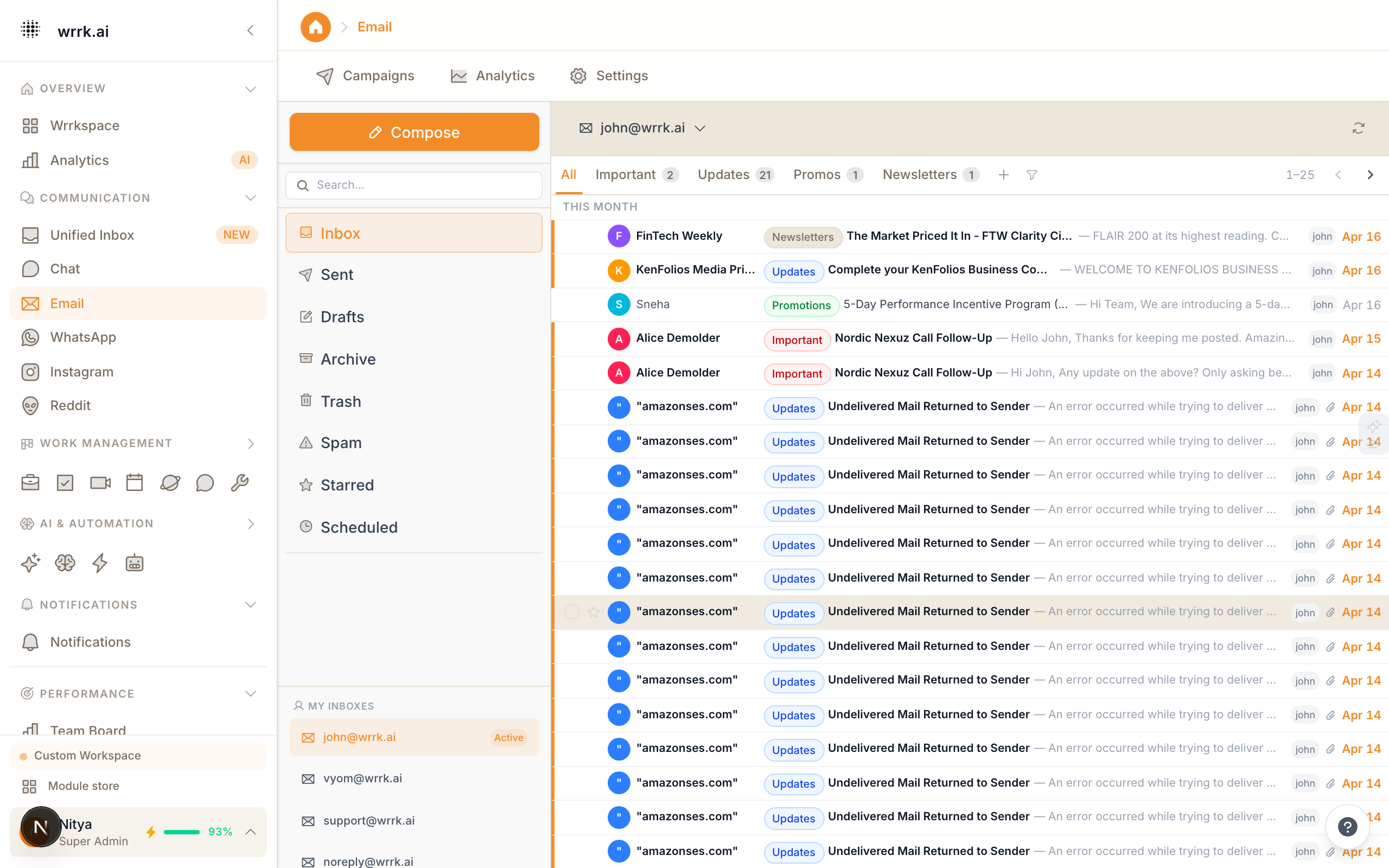
Once your email account is connected, all incoming messages appear in the wrrk Email module and the Unified Inbox.
Email Interface
The email module has three panels:
- Folder List (left), Inbox, Sent, Drafts, Starred, and custom folders.
- Message List (center), Emails in the selected folder, sorted by date. Unread messages are highlighted.
- Reading Pane (right), The full content of the selected email, including attachments.
Reading Emails
Click any email in the message list to view it. The reading pane shows:
- Sender name and email address
- Date and time received
- Full email body with formatting preserved
- Attachments with download links
- Thread history (if part of a conversation)
Replying
- Click Reply or Reply All at the bottom of the reading pane.
- The compose window opens with the recipient(s) pre-filled and the original message quoted.
- Type your response. Use the formatting toolbar for bold, italic, links, and lists.
- Click Send.
AI-Assisted Replies
wrrk can suggest replies based on the email content and your past responses:
- Click the AI Suggest button in the compose toolbar.
- Review the suggested response. You can edit it before sending.
- Over time, AI learns your tone and style for more accurate suggestions.
Composing New Emails
Click the Compose button (top of the email module) to start a new email. You can also compose from the CRM by clicking the email icon on a contact card, which pre-fills the recipient.
Keyboard Shortcuts
- R: Reply to selected email
- A: Reply All
- F: Forward
- C: Compose new email
- E: Archive selected email
- Delete: Move to trash
Tips
- Star important emails to find them quickly later.
- Use the search bar to find emails by sender, subject, or content.
- Enable notifications for specific senders in Settings > Notifications.
Tags
emailreplycomposeinboxai