Tasks and Reminders
Create, manage, and track tasks with reminders and recurring schedules.
Tasks and Reminders
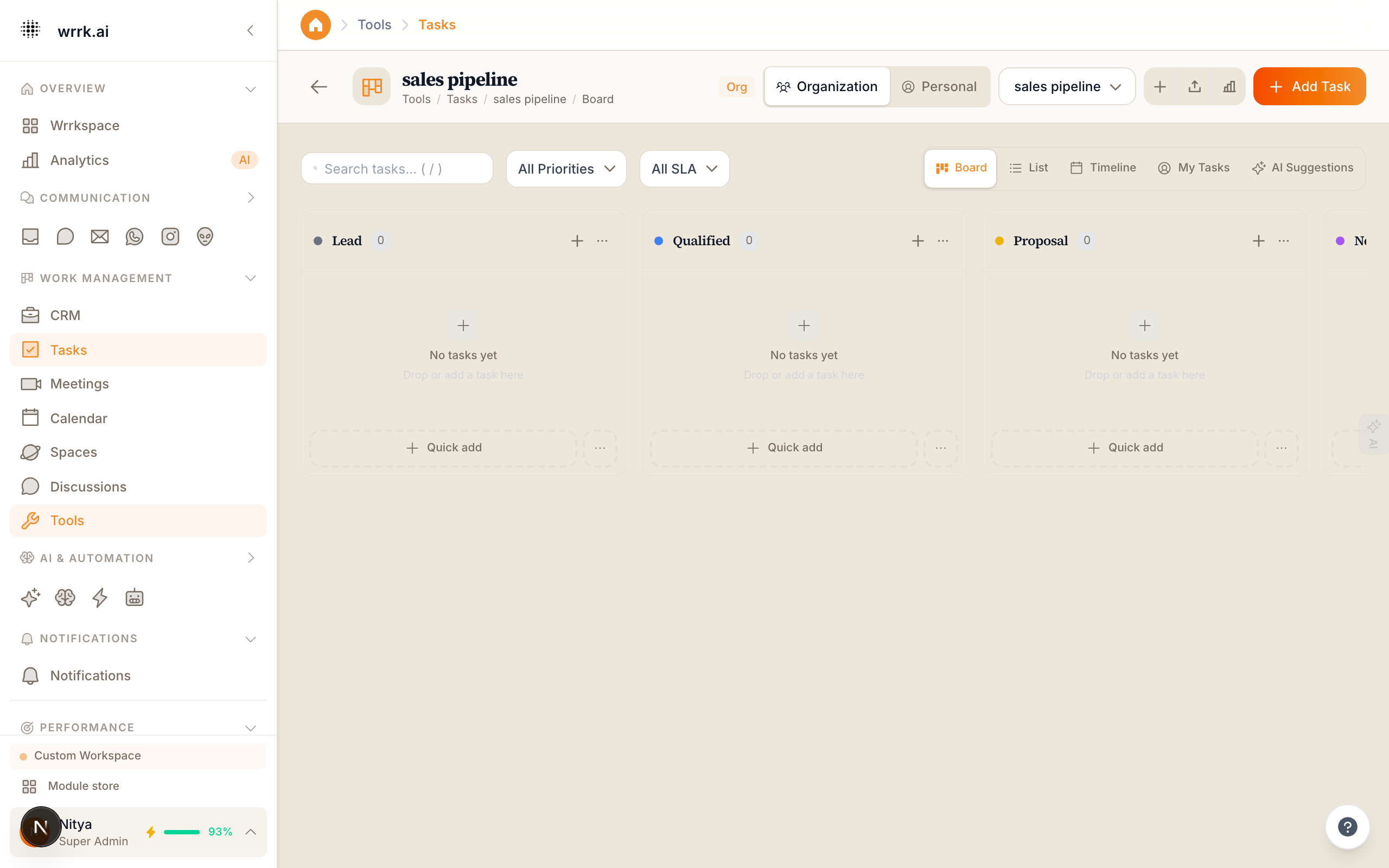
Tasks help your team stay organized by tracking to-dos, follow-ups, and deadlines.
Creating Tasks
From the Tasks Module:
- Go to Tasks in the sidebar.
- Click New Task.
- Enter:
- Title
- Description (optional)
- Due date
- Priority (Low, Medium, High, Urgent)
- Assignee
- Related contact or deal (optional)
- Click Save.
From a Contact or Deal:
- Open the contact or deal detail page.
- In the Tasks section, click Add Task.
- The task is automatically linked to that contact or deal.
From Workflows: Tasks can be created automatically by workflows. For example, when a deal moves to "Proposal", create a task to "Prepare proposal document."
Task Views
List View: A simple list sorted by due date. Overdue tasks are highlighted in red.
Board View: A Kanban board with columns for To Do, In Progress, and Done.
Calendar View: Tasks displayed on a calendar based on their due dates.
Reminders
wrrk sends reminders for upcoming and overdue tasks:
- 24 hours before due date: In-app notification.
- At due date: In-app notification + email.
- Overdue: Daily reminder until completed or rescheduled.
You can customize reminder timing at Settings > Notifications > Task Reminders.
Recurring Tasks
For tasks that repeat (e.g., "Weekly team meeting prep"):
- Create the task as normal.
- Click Make Recurring.
- Select the frequency: Daily, Weekly, Monthly, or Custom.
- A new task instance is created automatically when the current one is completed.
Tips
- Link tasks to contacts and deals for better context.
- Use the Board View for visual task management.
- Set priorities to focus on what matters most.
- Review your task list at the start of each day.
Tags