User Guide
Updated 2026-09-21
Managing Contacts
Create, view, import, and manage contacts in the wrrk CRM.
Managing Contacts
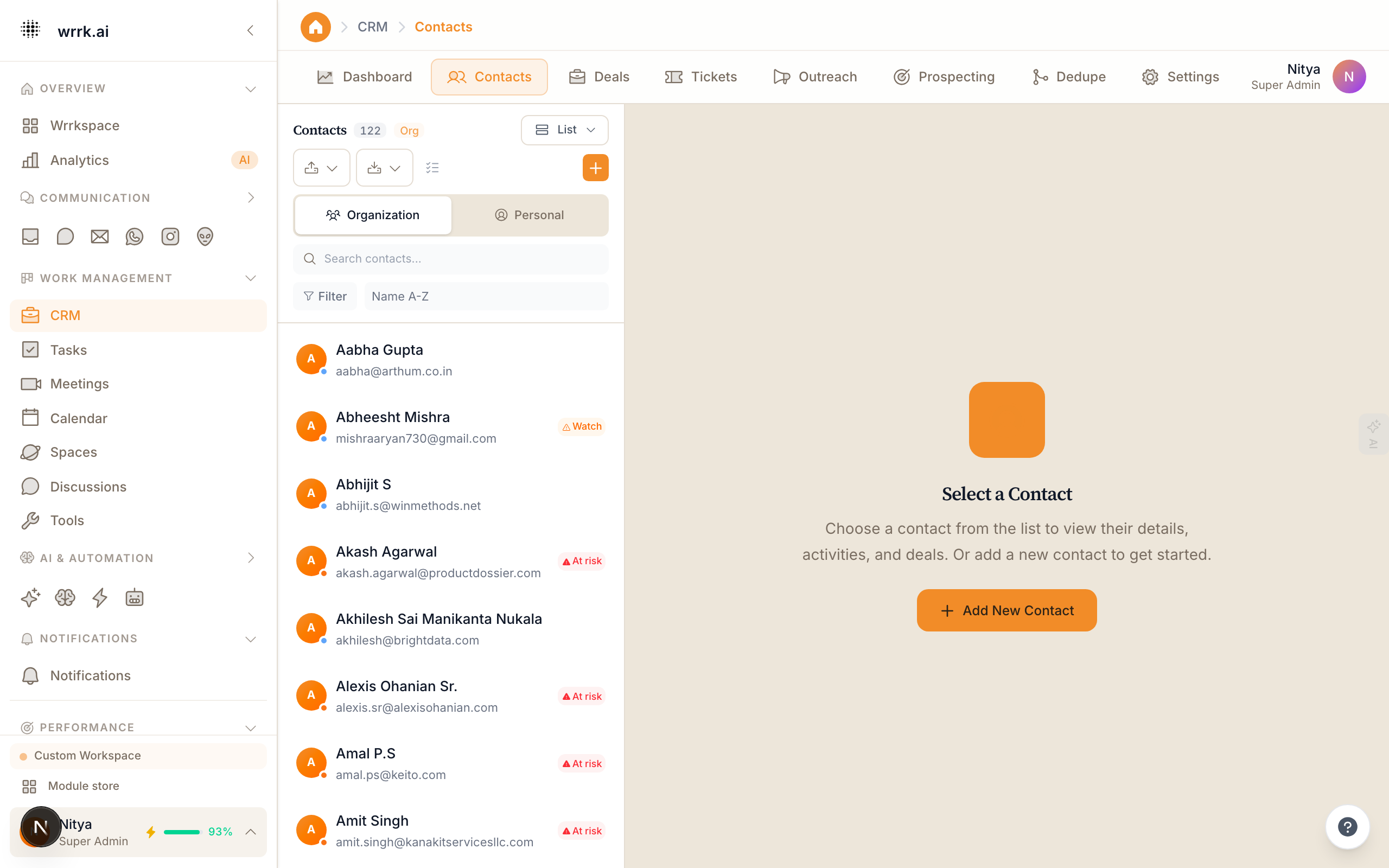
The CRM module is the central place to manage all your customer and lead information. Every person or company you interact with has a contact record.
Viewing Contacts
Navigate to CRM > Contacts to see your contact list. The default view shows a table with columns for name, email, phone, company, last activity, and status. You can:
- Sort by any column by clicking the header.
- Filter by status, tag, company, or custom fields.
- Search using the search bar for name, email, or phone.
Creating Contacts
Manually:
- Click New Contact in the CRM toolbar.
- Fill in the contact's details: name, email, phone, company, etc.
- Add tags and assign to a team member (optional).
- Click Save.
Automatically: Contacts are created automatically when:
- Someone sends you an email for the first time.
- Someone messages you on WhatsApp for the first time.
- A chatbot captures a new lead.
- You import a CSV file.
Contact Detail Page
Click any contact to open their detail page, which includes:
- Overview Tab: Contact info, tags, and custom fields.
- Timeline: A chronological log of every interaction: emails, WhatsApp messages, calls, notes, and deal changes.
- Deals: Associated deals and their current pipeline stage.
- Tasks: Open tasks related to this contact.
- AI Insights: AI-generated suggestions like next best action, churn risk score, and optimal contact time.
Bulk Actions
Select multiple contacts using the checkboxes, then use bulk actions:
- Tag: Add or remove tags.
- Assign: Assign to a team member.
- Export: Download as CSV.
- Delete: Remove contacts (with confirmation).
Importing Contacts
- Go to CRM > Contacts > Import.
- Upload a CSV file. Map columns to wrrk fields.
- Choose whether to update existing contacts or create duplicates.
- Click Import. Progress is shown in real time.
Tips
- Use tags extensively to segment your contacts (e.g., "VIP", "Lead", "Partner").
- Set up custom fields for industry-specific data.
- Regularly merge duplicate contacts to keep your CRM clean.
Tags
crmcontactsimportmanagement