User Guide
Updated 2026-09-21
Connecting WhatsApp
Connect WhatsApp Business API or Personal WhatsApp to wrrk.
Connecting WhatsApp
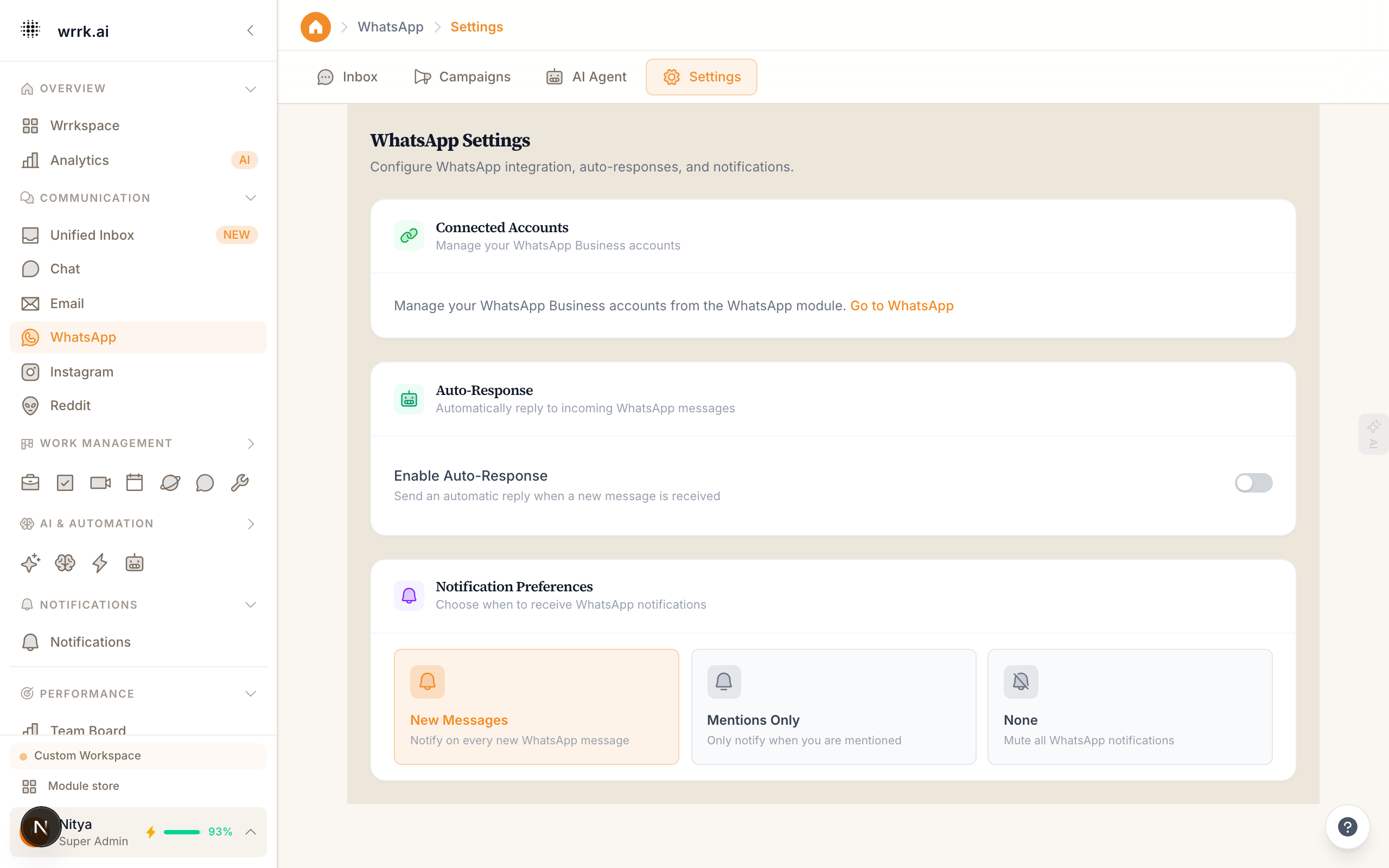
wrrk supports two ways to connect WhatsApp: the official WhatsApp Business API (via Meta Cloud API) and Personal WhatsApp (via QR code pairing).
Option 1: WhatsApp Business API (Recommended)
The Business API is best for teams. It supports multiple agents, automated messages, and does not require keeping a phone connected.
Prerequisites:
- A Meta Business account
- A phone number not already registered with WhatsApp
- Business verification with Meta (takes 1-3 business days)
Setup:
- Go to Settings > Integrations > WhatsApp.
- Select WhatsApp Business API.
- Click Connect with Meta and sign in to your Meta Business account.
- Follow the on-screen steps to register your phone number.
- Once verified, wrrk will begin receiving messages on that number.
Option 2: Personal WhatsApp
For smaller teams or personal use, you can connect your existing WhatsApp account.
Setup:
- Go to Settings > Integrations > WhatsApp.
- Select Personal WhatsApp.
- A QR code appears on screen. Open WhatsApp on your phone.
- Go to Settings > Linked Devices > Link a Device.
- Scan the QR code. Connection is established within seconds.
Note: Personal WhatsApp requires your phone to be connected to the internet. If your phone goes offline, message sync will pause.
Features Available
| Feature | Business API | Personal |
|---|---|---|
| Multi-agent access | Yes | Yes |
| Message templates | Yes | No |
| Broadcast messages | Yes | Limited |
| Auto-replies | Yes | Yes |
| Media messages | Yes | Yes |
| AI agent | Yes | Yes |
| Reactions | Yes | Yes |
After Connecting
- Incoming WhatsApp messages appear in the Unified Inbox and the WhatsApp module.
- Contact records are created automatically for new senders.
- You can assign conversations to team members or enable AI auto-reply.
Tags
whatsappsetupmetaqr-codebusiness-api