Troubleshooting LinkedIn campaigns
Common LinkedIn issues, unknown timestamps, repeating rows, empty CRM contacts, AI "wait" on fresh accepts, drifted stats, reconnect prompts, safety-gate confusion, per-campaign scope, and how to fix each.
Troubleshooting LinkedIn campaigns
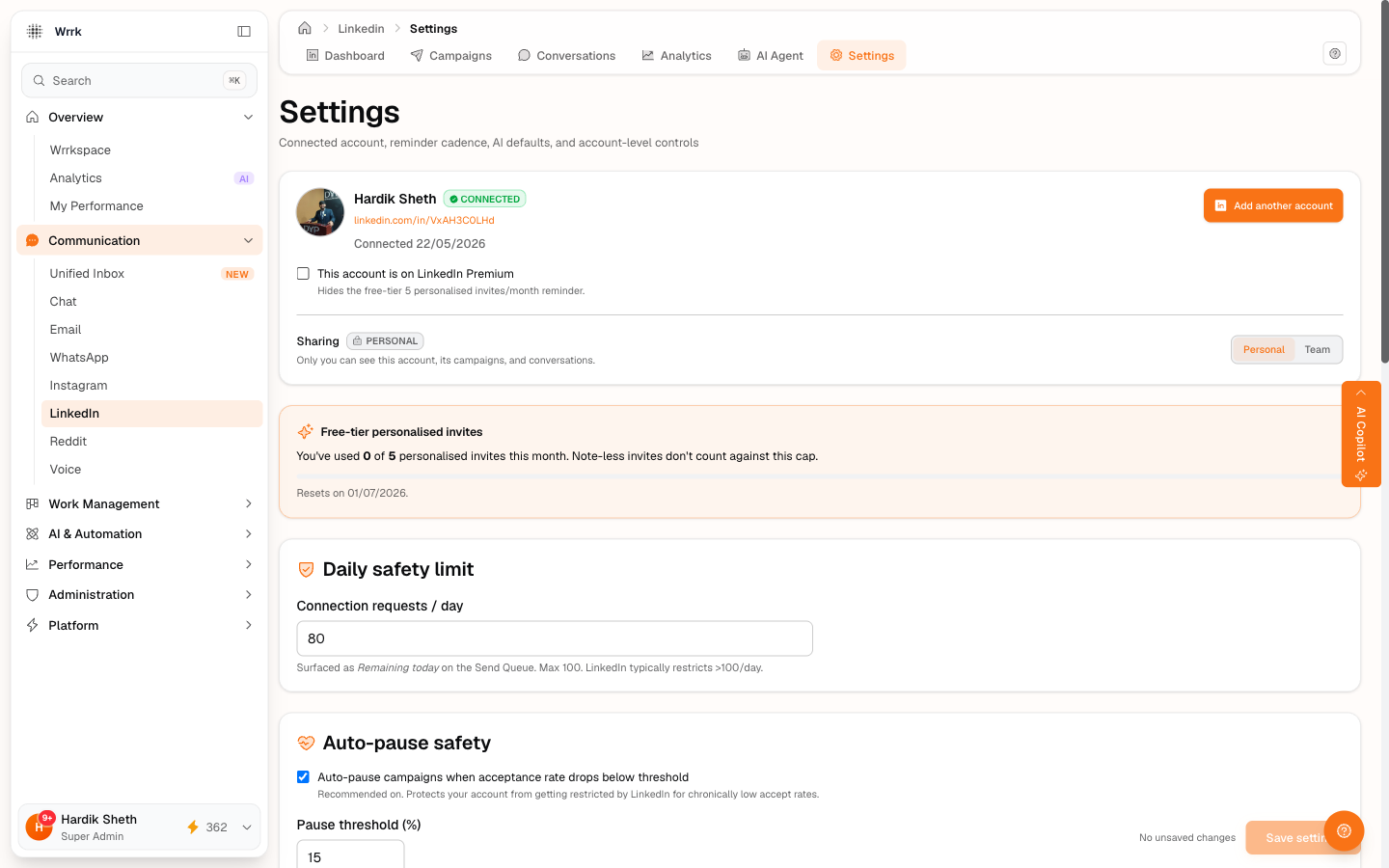
Common issues and how to resolve them.
Issue, "Unknown" timestamp on a Pending Accepts row
You see a row in Check for accepts with the time chip showing "unknown" instead of "Nh ago" / "Nd ago".
Cause: that recipient was added via an older code path that didn't stamp invitedAt on the row. Legacy data, not actionable.
Fix: harmless. You can still confirm Yes / Withdraw on the row normally. New invites you send today are stamped correctly.
Issue, Same recipient keeps appearing on "Check for accepts"
You marked something on the card and refreshed; the same row is back.
Cause: You clicked Still waiting, which is intentionally a "no state change, ask me again" signal. Only Yes/Withdraw drop the row permanently.
Fix: if you've actually checked and they accepted, click Yes, accepted. If you've decided to give up on them, click Withdraw invite.
Issue, "Get AI suggestion" deducted a credit but nothing showed up
You clicked Get AI suggestion, the credit went down by 1, but no draft appeared.
Cause: The agent decided wait (too early for a follow-up) or mark_complete. Both are valid outcomes, the agent didn't refuse, it just chose a non-send action.
Fix: scroll up, there's a small inline message "AI suggests: wait" or "AI suggests: mark_complete" above where the draft would go. Credit is correctly consumed whether the agent drafts a message or makes a non-send decision.
Issue, CRM Contacts tab is empty
The CRM Contacts picker shows "Loaded N contacts, none had LinkedIn URLs on file."
Cause: Your CRM contacts don't have the linkedinUrl field populated.
Fix: Open a contact in CRM, paste their LinkedIn URL into the profile, save. Come back to the picker. Alternatively, use Manual Entry or Upload CSV to paste URLs directly.
Issue, Campaign won't launch, "Cannot launch with 0 recipients"
You clicked Launch but the campaign won't transition out of draft.
Cause: The campaign has no recipients. wrrk refuses to launch an empty campaign because there's nothing for the Send Queue to show.
Fix: Open the campaign → Recipients tab → click Add Recipients → paste at least one slug → save → retry Launch.
Issue, "Auto-paused N campaigns, acceptance rate is below threshold"
You got a red toast and your campaigns flipped to paused without you doing anything.
Cause: Your acceptance rate (across all running campaigns on this account, after at least ~10 invites) dipped below your safety threshold. Default threshold is 30%.
Fix: see Acceptance rate and auto-pause safety for the full explainer. Short version: edit the connection note to be more compelling and re-launch. Or lower the threshold in Settings if a sub-30% rate is acceptable for your targets.
Issue, AI returned "wait" for a fresh accept with zero messages
You clicked Draft my first message (or Get AI suggestion) on a just-accepted connection and the AI returned wait with reasoning about missing product/objective data, often mentioning placeholder text like "gfdsa".
Cause: The conversation is linked to a campaign whose product description / objective fields contain placeholder or junk text. The AI is reading the real campaign's real data, it's just not the campaign you think.
Fix: Look at the "Linked to: [campaign name]" chip on the conversation header. If it points to an old test campaign, click the chip → pick a campaign with real product/objective text from the dropdown. The conversation re-links and the cached AI decision clears. Re-click Draft my first message, you should now get a real draft.
Alternative: click Write my own below the Draft my first message button, types your own intro, costs 0 credits, bypasses the AI's wait decision entirely.
Issue, "No profile data" on a conversation header
You opened a conversation and the prospect's name + headline + company all show as missing, leaving you with just the LinkedIn slug.
Cause: The prospect was added via Manual Entry or CSV without name/company/title columns, so the conversation row got seeded with only the slug. The AI agent works less well without prospect context.
Fix: Two recovery buttons on the conversation header:
- Pull from CRM: looks for a CRM contact whose
linkedinUrlmatches this prospect's slug; if found, copies name / headline / company into the conversation. - Add manually: opens a 3-field form (Name / Headline / Company). Save and the header + AI prompt update immediately.
Going forward, the CRM-sync toggle on the create form catches this at recipient-add time.
Issue, Recipients tab shows "N of M recipients are not in CRM"
An amber banner sits above the filter pills.
Cause: Some recipients were added via Manual Entry or CSV without the CRM-sync toggle on, or before that toggle existed.
Fix: Click the Add N to CRM button in the banner. Bulk-creates CRM contacts for all missing in one server-side pass; duplicates auto-skipped. Or click the per-row + CRM chip for one prospect at a time.
Issue, Same prospect shows in two different campaigns
You see wachas in Real-life flow smoke (accepted) and again in Testing (pending). It looks like a duplicate person.
Cause: Each campaign tracks its own per-recipient state. The same LinkedIn slug can legitimately exist in multiple campaigns, they're the same person, just being re-engaged from different angles. Not a bug.
Fix: wrrk knows this. The Copilot collapses same-slug entries when answering ("accepted in Real-life flow, re-invited via Testing") and the create-campaign toast warns when recipients are already engaged elsewhere. Just be aware that re-inviting someone in a different campaign won't re-send an invite on LinkedIn, you still go through the manual Send Queue → Open → confirm loop for the new campaign.
Issue, Campaign stats show Accepted > Sent (impossible ratio)
A campaign shows e.g. Sent 1, Accepted 2, which can't physically happen.
Cause: Legacy drift from earlier testing, before the Already connected / Already invited buttons existed. Users would click Yes accepted on prospects who'd never been invited from that campaign, ticking the accept counter without the send counter moving.
Fix: The dashboard aggregate rate is already clamped at 100%, so this only shows on per-campaign cards. If a campaign has truly drifted data, cancel and delete it (only draft / cancelled campaigns can be hard-deleted) and start fresh.
Issue, "Needs reconnect" warning on a connected account
The account switcher shows an amber ⚠ icon next to the active account, and the dropdown row says Needs reconnect, open Settings (or , ask the owner).
Cause: The account's Nango OAuth token has expired or its scopes have been revoked. Could be a LinkedIn password change, an account-security event, or the standard token-rotation window.
Fix:
- If you're the owner: open LinkedIn → Settings, find this account in the Account dropdown, and run the Connect LinkedIn flow for it again. The reconnect re-issues the Nango token without losing any existing campaigns / conversations.
- If you're a teammate (the account is team-shared with you): you can't OAuth on someone else's behalf. Ping the owner, only they have the LinkedIn credentials needed to re-authenticate. Until they reconnect, the data is cached but new sends from that account will fail at LinkedIn's end.
Issue, Open in LinkedIn button is disabled with "Confirm you're logged into the shared account first"
The send button is greyed out and a tooltip says you need to tick the safety checkbox before opening LinkedIn.
Cause: The campaign is on a LinkedIn account that's been shared with the team, and you're not the account's owner. wrrk can't see which LinkedIn account is currently logged into your browser, so before opening the deep-link, we ask you to confirm you've actually switched to the shared account's login.
Fix: Open linkedin.com in a separate tab (the "Open LinkedIn to check" link in the warning takes you there). If you're logged in as your personal LinkedIn, log out and log back in using the shared account's credentials (usually from your team's password manager). Come back, tick the "I've verified I'm logged into LinkedIn as [account name]" checkbox, and the Open in LinkedIn button enables. See [share-linkedin-account-with-team] for the full reasoning, this guardrail exists because browser security blocks wrrk from doing the verification automatically.
Issue, I flipped my account to Team but my teammate still can't see my campaigns
You toggled the account from Personal to Team in Settings. The teammate sees the account in their LinkedIn module, but the campaigns you created on it are still hidden from them.
Cause: Account scope and campaign scope are independent. Flipping the account to Team makes the account visible, but each campaign on it has its own scope chip (🔒 Personal or 👥 Team) that controls per-campaign visibility. Campaigns default to Personal even on a Team-shared account, so they stay hidden from teammates until you flip them too.
Fix: Open LinkedIn → Campaigns. Each row shows a scope chip next to its name. Click the chip on any campaign you want the team to see, it toggles between Personal and Team. Owner-only; teammates see a read-only "Shared" badge once you've flipped it. The split lets you share an account broadly while keeping certain campaigns (board outreach, recruiting, sensitive projects) private.
Credit deduction reference
| Action | Credits | Feature key |
|---|---|---|
| Get AI suggestion (conversation, Draft my first message, Open conversation path) | 1 | linkedin_followup |
| ✨ AI suggest on a single create-form field | 1 | compose_ai |
| Generate with AI panel (all 3 create-form fields) | 2 | compose_ai |
| Find Leads in CRM (quick action) | 1 / 5 leads | linkedin_search |
| Qualify Prospects | 1 / prospect | linkedin_qualify |
| Write my own first message (free path) | 0 | , |
All other actions, sending invites, confirming accepts, recording replies, pause/resume, Pull from CRM, Add to CRM bulk, switch-campaign chip, etc., cost zero credits. Only AI-backed actions deduct.
Tags
Related Articles
Acceptance rate and auto-pause safety
Auto-pause flips running campaigns to paused if your acceptance rate dips below the safety threshold (default 30%).
Check who accepted your invites
24h+ invites surface for confirmation on the dashboard. Same flow available inline on Recipients tab rows. Yes accepted, Still waiting, or Withdraw, all user-confirmed.
Message your accepted LinkedIn connections
Draft my first message (1 credit) or Write my own (free). Pull from CRM and switch-campaign chip on the header keep the prospect + campaign context accurate.
State-aware Recipients tab
Per-row state pill + attention badge + click-to-expand inline actions. Continue the workflow from any row, send invites and confirm accepts without leaving the campaign.
Share a LinkedIn account with your team
Flip an account or campaign to Team scope so everyone in your org can see it, modeled on email's Team Inbox. Owner stays in control of edits and sending still happens in the teammate's LinkedIn browser session.