Share a LinkedIn account with your team
Flip an account or campaign to Team scope so everyone in your org can see it, modeled on email's Team Inbox. Owner stays in control of edits and sending still happens in the teammate's LinkedIn browser session.
Share a LinkedIn account with your team
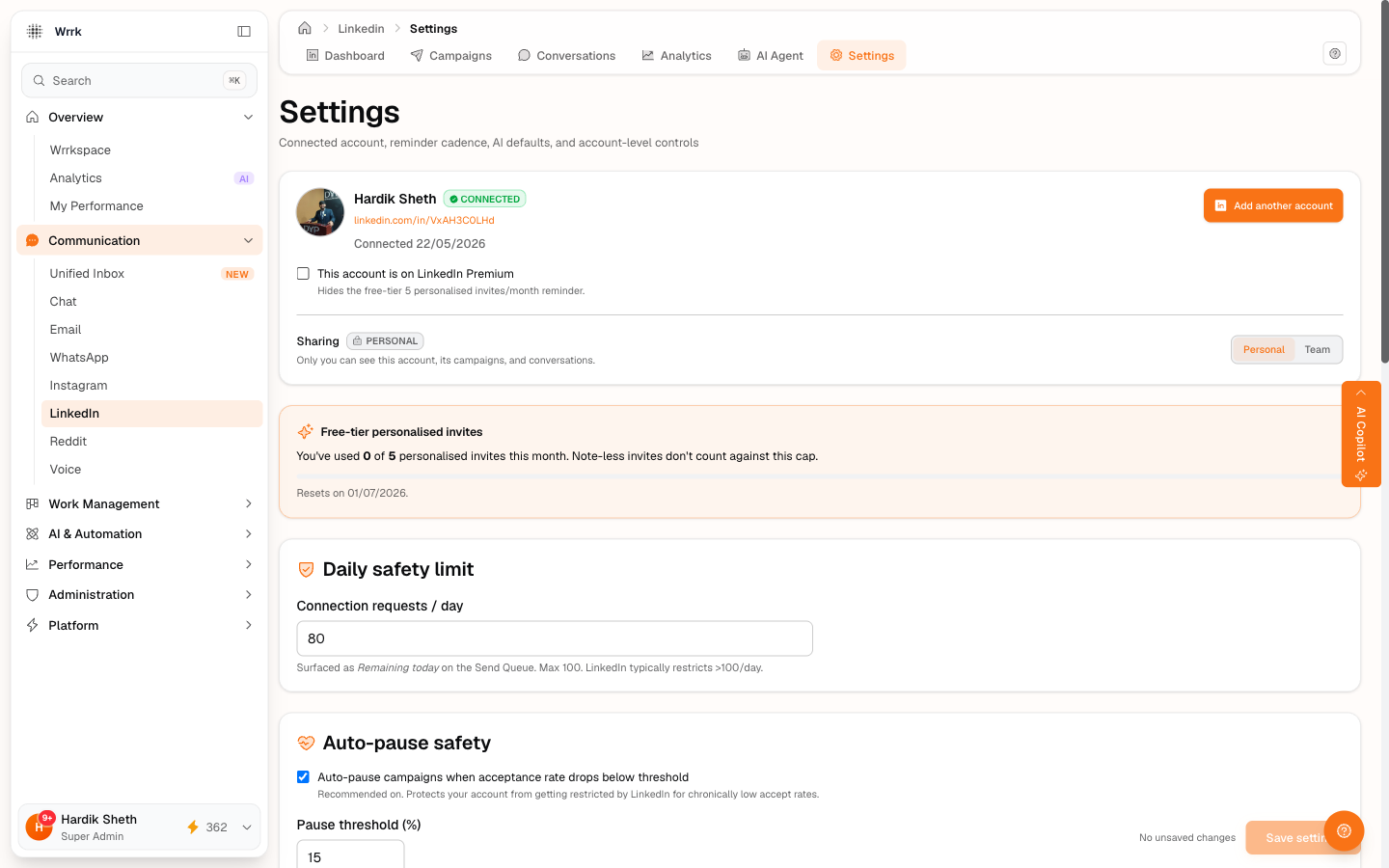
By default, every LinkedIn account, campaign, and conversation you create in wrrk is Personal: only you can see it. That keeps your outreach private from teammates. If your team operates a shared company LinkedIn (one account that multiple people use), you can flip it to Team so everyone in your org can see and act on it, matching how email's "Team Inbox" toggle works.
The two visibility modes
| Mode | Who can see | Who can edit / send |
|---|---|---|
| 🔒 Personal (default) | Only the owner who connected it | Only the owner |
| 👥 Team | Everyone in your org | Only the owner can edit settings; anyone can act on campaigns |
Switching is a single toggle, no per-user picker. The owner is always whoever clicked Connect LinkedIn for the account.
Switch an account to Team
- Open LinkedIn → Settings.
- If you have more than one connected account, pick the one to share from the Account dropdown.
- Under Sharing, click the Team button.
- You'll see a confirmation toast, the account is now visible to every teammate.
Switch a campaign to Team
Some teams want a shared LinkedIn account but want certain campaigns to stay private (e.g., a personal outreach for board-level intros). You can flip individual campaigns independently of the account:
- Open LinkedIn → Campaigns.
- Each campaign row shows a chip next to its name, 🔒 Personal or 👥 Team.
- Click the chip to toggle. Owner-only; teammates see a read-only "Shared" badge instead.
A campaign on a Team-shared account can stay Personal, and vice versa. They're independent.
What teammates can and can't do
Once the account/campaign is Team:
- ✅ They see it in their LinkedIn module, Settings, Campaigns, Conversations, Dashboard, Analytics.
- ✅ They can record activities (Yes, sent / Yes, accepted / paste replies), useful when your team coordinates outreach.
- ❌ They cannot edit campaign messages, launch / pause / cancel campaigns, or change account-level safety limits.
- ❌ They cannot disconnect the LinkedIn account or change its sharing mode.
These restrictions stop teammates from accidentally bricking your campaigns or kicking off invites with the wrong messaging.
The one thing wrrk can't control
Even after sharing in wrrk, sending an invite or message from the shared account still happens in your teammate's own LinkedIn.com browser session. wrrk's send button just opens linkedin.com in a new tab, whichever LinkedIn account is logged into that browser is the one that actually posts.
In practice, that means:
- If your teammate is logged into LinkedIn.com as themselves, clicking Send invite on a shared campaign will send the invite from their personal LinkedIn, not the company account.
- To send from the shared account, your teammate has to log out of their personal LinkedIn and log in with the company account's credentials in the same browser.
Teams typically handle this by sharing the company LinkedIn credentials via a password manager (1Password, Bitwarden, etc.).
> ⚠️ When you flip an account to Team, wrrk shows a heads-up reminder inside Settings, you'll want to share the login credentials with the team via your password manager so they can actually send from it.
Why we can't do this automatically
Browser security stops us from reading or changing which LinkedIn account is logged into your browser. Specifically:
- CORS prevents wrrk.ai from seeing any data on linkedin.com.
- iframe blocking stops us from embedding LinkedIn to peek.
- LinkedIn's messaging API is partner-only, we don't have approval, which is why the whole module uses manual deep-links instead of server-side sending.
For the same reason, the safety modal that pops up before sending from a Team account asks you to confirm "I'm logged into LinkedIn as [shared account] right now", that's the only enforcement available to us.
Switching back to Personal
Same toggle, in reverse. Click Personal on Settings or the chip on a campaign row. Existing data is preserved; teammates just stop seeing it. They lose access immediately, no migration step needed.
When team-sharing is the wrong call
- Personal recruiting / job-hunting outreach: keep these Personal so colleagues don't see who you're messaging.
- Sensitive accounts (board-level, fundraising): likely to leak if shared widely.
- Compliance-sensitive industries: check with your legal team before broadcasting LinkedIn activity org-wide.
When in doubt, leave it Personal, it's safer to share later than to find out a teammate saw a draft you didn't want them to see.
Tags
Related Articles
Connect your LinkedIn account
Two-minute setup: sign in via OAuth, tick the Premium box if applicable, set your auto-pause threshold.
Pause, resume, edit, or delete a campaign
Pause / Resume on running campaigns. Edit on draft/scheduled/paused. Hard-delete only on draft or cancelled.
Launch a campaign and send invites
Launch flips status to running. The Send Queue is a scrollable list; pick a prospect, copy the note, open LinkedIn, paste, send, confirm via one of five buttons.